


TL;DR - Key Takeaways
A quick overview for busy decision-makers.
In an ERPAn ERP system connects a company’s core processes—such as sales, finance, inventory, manufacturing, and service—in one place so teams can work with shared information. system, a power user is an employee who uses advanced functions, understands how their work connects to other departments, and helps colleagues use the system well. You’re likely thinking of someone right now, the person others ask before they call support. That person may already do the job. The question is whether you’ll name it, bound it, and train for it.
What a Power User Means in an ERP System
A useful power user definition starts with behavior, not seniority. The person goes beyond basic transaction entry, follows work across departments, and helps others get it right. It’s a role-based label, not a job title or certificate. Someone can be a power user in warehouse work and a regular user in payroll, because the label follows the process they support.
That distinction matters when you compare roles side by side.
Regular user, power user and administrator compared
| Criteria | Regular user | Power user | Administrator |
|---|---|---|---|
| Main focus | Completes daily transactions in one area | Connects processes across departments and improves them | Sets up and protects the system |
| Feature use | Standard screens and forms | Advanced functions such as workflow settings, filters, exception views and drill-through | Settings, roles, integrations and audit tools |
| Cross-department view | Limited to own tasks | Follows records across SIX Flows | Full system view for governance |
| Support for colleagues | Occasional | Regular guidance and documentation | Through access and support decisions |
| Sensitive settings | No access | Access only where approved | Full access under company controls |
Where the Term Comes From
The term appeared in technology publications in 1984, when InfoWorld used it in April 1984 for someone who accessed software menus through multiple routes. That early use described advanced behavior, not merely heavy use. Enterprise software later widened the meaning to include a non-programmer who tests workflows, trains colleagues, gives first-line support, and translates operational needs for IT.
There’s no universal usage threshold, so each company sets its own. Don’t look for an industry login count that settles it.
A power user is defined by reach across a process, not by the number of screens they can name.
Take a hypothetical example. A sales coordinator follows one customer order from quote to invoice, sees that stock won’t cover the delivery date, and alerts purchasing before the delay reaches the customer. She hasn’t touched the most screens that week. She’s still the power user in that flow, because her work changed what purchasing and sales did next.
Measuring Power Use and Confirming Candidates
Login frequency misleads you. A clerk who opens the same screen all day scores high on activity but may affect no one else’s work. A planner who logs in less often, proposes approvalAn approval is a formal decision that allows a request or action to proceed. An ERP system can route approvals and record who made each decision. logic, and clears exceptions across modules can affect far more. A defensible model tracks session frequency, feature breadth, feature depth, and workflow impact, as described in Penn State research on who power users are, which studied 454 international technology users.
Four dimensions for scoring power use in SIX ERP
| Dimension | What to measure | Example in SIX ERP |
|---|---|---|
| Session frequency | Active days in a rolling 28- or 30-day window | Opening sales orders every working day |
| Feature breadth | Number of modules and functions used | Using SalesFlow, StockFlow and dashboards together |
| Feature depth | Advanced functions used, such as workflow settings or exception views | Proposing an approval threshold for purchase requests |
| Workflow impact | Downstream users or processes affected by the work | A mobile service update that triggers invoicing |
A Scoring Method You Can Run
- Set the window: Use a rolling 28- or 30-day baseline.
- Count the signals: Track active days, advanced-feature events, modules used, records processed, exception resolutions, and downstream users affected.
- Normalize by role: Compare each person with peers doing the same kind of work, not with the whole company.
- Flag the upper range: Look for people who score high across several dimensions, not just one.
- Review before naming: Discuss each flag with the person’s manager first.
Calibrate thresholds separately for office, warehouse, manufacturing, finance, and field-service roles. A field technician who records a few mobile updates that trigger invoicing shouldn’t compete with an office user on active days.
Confirming a Candidate
Scores only produce candidates. Confirm four things before you name anyone. The person connects at least two processes, their way of working is documented, they accept permission boundaries, and their manager agrees the role fits their duties.
Write down the process map and proposed permission level at that point. Consider a hypothetical warehouse lead who resolves a handful of stock exceptions that hold up purchasing. Those few high-impact events outweigh many routine logins, and your scoring should show it.
Daily Responsibilities of a Power User
The core duty is simple. A power user understands the team’s work and how SIX ERP represents it. The label describes reach across processes, not how many screens someone has memorized. If they can’t explain how a status change moves work to the next team, they aren’t ready for the role.
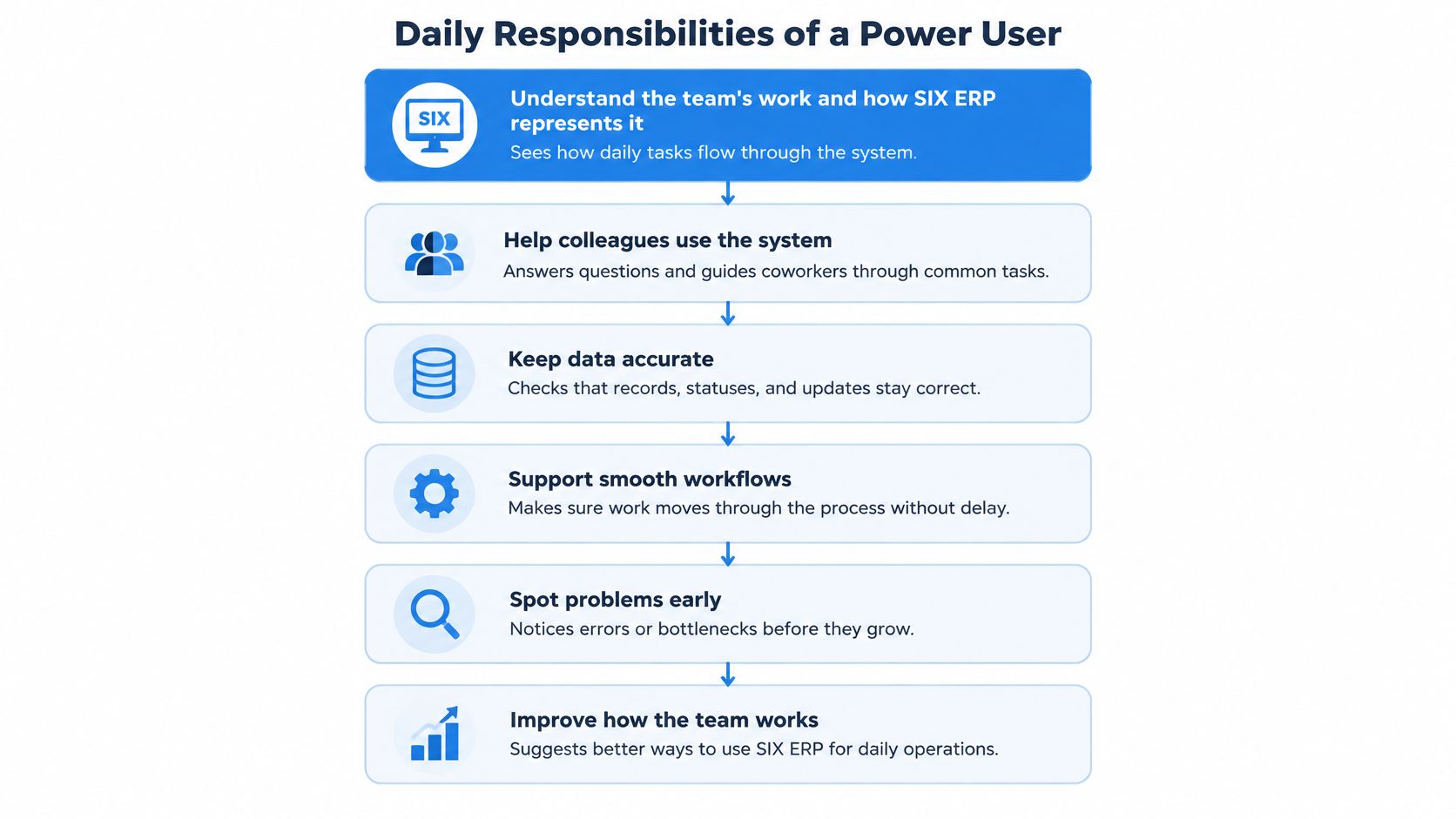
Day to day, the work looks like this:
- Help colleagues: Answer common questions and guide coworkers through tasks before they become support tickets.
- Keep data clean: Check records, statuses, and required fields so other teams can trust what they see.
- Watch the flow: Maintain filters and exception views that surface blocked tasks before they stall downstream work.
- Document process needs: Write down gaps and workarounds in terms a manager or consultant can act on.
- Test changes: Try new settings against real cases before they go live for everyone.
- Escalate well: Raise issues to the right SIX contact with the record, steps, and business effect included.
Power users are process stewards with defined limits. They support and improve processes, while access to sensitive settings stays controlled.
Demand for this skill is real. An EY workforce report on tech skills notes that approximately 81% of organizations report low availability of power-user or power-developer skills. The shortage hits hardest where work crosses functions, because a sales order affects purchasing, inventory, production capacity, delivery commitments, and finance.
One Planner, One Rush Order
A rush order lands on a manufacturing planner’s desk on Monday morning. She checks material availability and capacity, records the delay risk on the order, tells sales and purchasing what she found, and logs the process gap for later review. Sales can reset the promise date, and purchasing can act, because she connected the steps instead of entering data and moving on.
In practice, she works from live dashboards and reports to see current status and follows transactions through their full process history. In SIX ProjectFlow, revised deadlines, blocked tasks and new responsibilities stay visible along with how one delay affects later activities, so she can respond before the whole schedule slips. When customer records feed that order, SIX CustomerFlow covers CRM, customer records and interactions, so the order context isn’t lost in separate notes. Placing people like her well is part of building your ERP implementation team structure, not an afterthought once training ends.
Permission Patterns That Keep Power Users in Control
There’s a real tension here. Power users want control over their workspace, and an ERP needs traceable, governed changes. A review of research on power users reports that they prefer systems with extensive customizationCustomization changes or adds software functionality beyond standard settings. In an ERP project, it can meet specific business needs while adding development and maintenance work. because they want control over their experience, and that they invest extra effort in discovering capabilities. Block that instinct entirely and you’ll frustrate your best people. Leave it unbounded and you’ll lose track of who changed what.
Typical power user permission levels and their controls
| Access level | Typical power user right | Control in place |
|---|---|---|
| Personal views | Create filters, saved views and personal dashboards | Visible to the owner unless shared through approval |
| Workflow change | Propose changes to approval steps and routing | Sandbox test and approval before release |
| ConfigurationConfiguration sets up software using its existing options. In an ERP system, it adapts workflows, roles and other settings to the company’s business processes. | Adjust approved settings within a defined scope | Changes restricted to named administrators |
| Data correction | Fix exceptions within the role’s responsibility | Audit trailAn audit trail records who created, changed or approved information and when. In an ERP system, it helps trace transactions, investigate errors and support audits. on every change |
| Cross-module reports | Drill through from summary to transaction | Access limited by role and data scope |
Governance That Holds Up
Four practices keep this workable. Test changes in a sandbox before release, require approval for workflow changes, keep an audit trail for every change, and limit drill-through to the data a role needs. Reassess access whenever someone changes role. We review user permissions, roles, sensitive data, and important system controls as teams and responsibilities change, to protect information while keeping work accessible.
Practical rule: Give power users freedom in personal views, and require approval anywhere a change reaches other people’s work.
Permission decisions remain your company’s responsibility. Confirm with your SIX contact how roles, permissions, and audit logs are configured in your own instance, and ground the design in role-based access rather than individual exceptions.
Adapt this checklist for each power user:
- List each right: Write down exactly what the person can do.
- Test first: Trial the change in a sandbox.
- Record the approver: Name who agreed to release it.
- Confirm the audit entry: Check that the change is traceable.
- Remove access: Take rights away when the role ends.
Risks and Mistakes to Avoid
Power user programs rarely fail loudly. They drift. Rights widen a little, judgment calls go undocumented, and the gap only shows when the person is on leave or a report can’t be explained.
Because a power user is defined by reach across processes, the risks are the places where reach runs ahead of accountability. Watch for these seven.
- Over-broad access: Configuration rights let someone bypass approvals and change live workflows without review. Limit rights to the role, and keep live changes behind approval.
- Informal administrator: Treating a power user as a backup admin blurs responsibility when something breaks. Name who’s accountable for settings, and keep the power user on process support.
- Unaudited process ownership: Influence concentrates, and nobody checks who holds each cross-module process. Audit it with one question: if this person were away for a month, who could explain every step? Where the answer is nobody, that process needs a second owner.
- The bottleneck: A helpful power user fixes every exception and becomes a queue. Assign routine exceptions to documented owners so work doesn’t wait for one desk.
- Undocumented change: Someone alters a filter or report without notes, and later results can’t be explained. Log the change, the reason, and the approver.
- Recognition by activity: When praise and privileges follow whoever is busiest in the system, repetitive clerical work gets rewarded while the people who hold processes together go unseen. Recognize outcomes and cross-process influence, not visible effort.
- Train once, never again: Skills go stale after a process changes. Schedule refresher training whenever the workflow changes.
If only one person can explain a process, you don’t have a power user program. You have a single point of failure.
Treat each item as a review question answered on a schedule, rather than a problem to fix once. Software supports records and controls, but your company remains responsible for determining and meeting its legal and compliance duties.
Training Power Users Through Role-Based Practice
A blocked order on a busy morning exposes the gap between screen tours and real preparation. SIX provides post-integration support, training, and continuous updates, and for power users the format that works is role-based practice inside the workflows they will govern.
Seven Steps in Order
- Map the workflow: Agree on the process the person will support, from trigger to final record.
- Practice daily tasks: Work through normal cases in a training copy.
- Work the exceptions: Rehearse what breaks and how to resolve it.
- Check data quality rules: Cover required fields, statuses, and what clean records look like.
- Walk the boundaries: Make permission limits explicit, including what they must not change.
- Build and read reports: Practice drill-through from a summary number to the transaction behind it.
- Learn escalation: Confirm who gets what, and in which order.
For that last step, SIX prioritizes support requests according to urgency, business impact, the number of affected users, and the importance of the process involved. Teaching candidates to state those four things in a request gets them a faster, better answer. Exception practice works best as realistic cases, and what scenario-based training involves explains how to structure that kind of rehearsal.
This follows the key-user model described in ERP implementation research on power users: teach these users first, then have them train their department. You get a first-line support layer that explains cross-functional impacts before issues reach central support. Colleagues also hear the reasoning in their own team’s language, which a central help desk can’t easily match.
Two platform features make the practice realistic. Role-based dashboards mean each candidate trains on the same views they will govern in production, and flow-based process mappingProcess mapping documents the steps, people and decisions involved in business work. In an ERP project, it helps define workflows and identify improvements before system setup. keeps exercises aligned with how your company operates. Because the shared data model supports cross-module KPIs and drill-through reporting, candidates can rehearse tracing one summary figure down to the transaction behind it. That is the skill that separates influence over a process from familiarity with its screens.
Keep training attached to role changes across the system’s life, starting at go-live. Adding users, sites, integrations or workflows, and planning organisational or regulatory changes are all reasons to use Support & Continuous Update, so each change becomes a scheduled training trigger. A practical place to start is building an ERP training schedule for your organization, then share your process map and candidate list with a SIX expert to plan role-based training and confirm the access model that fits your company’s controls.
If you’re ready to turn your strongest users into governed process stewards, explore how SIX ERP connects sales, purchasing, stock, manufacturing, service, and finance in shared, traceable workflows. Bring your process map and candidate list, and we’ll help you plan role-based power user training and an access model that matches your controls.